How to Find Previously Copied Text on Mac with NexPaste
Save, search and paste clipboard history on Mac. Learn about keyboard shortcuts, the 500-item history limit, file references and optional iCloud sync.
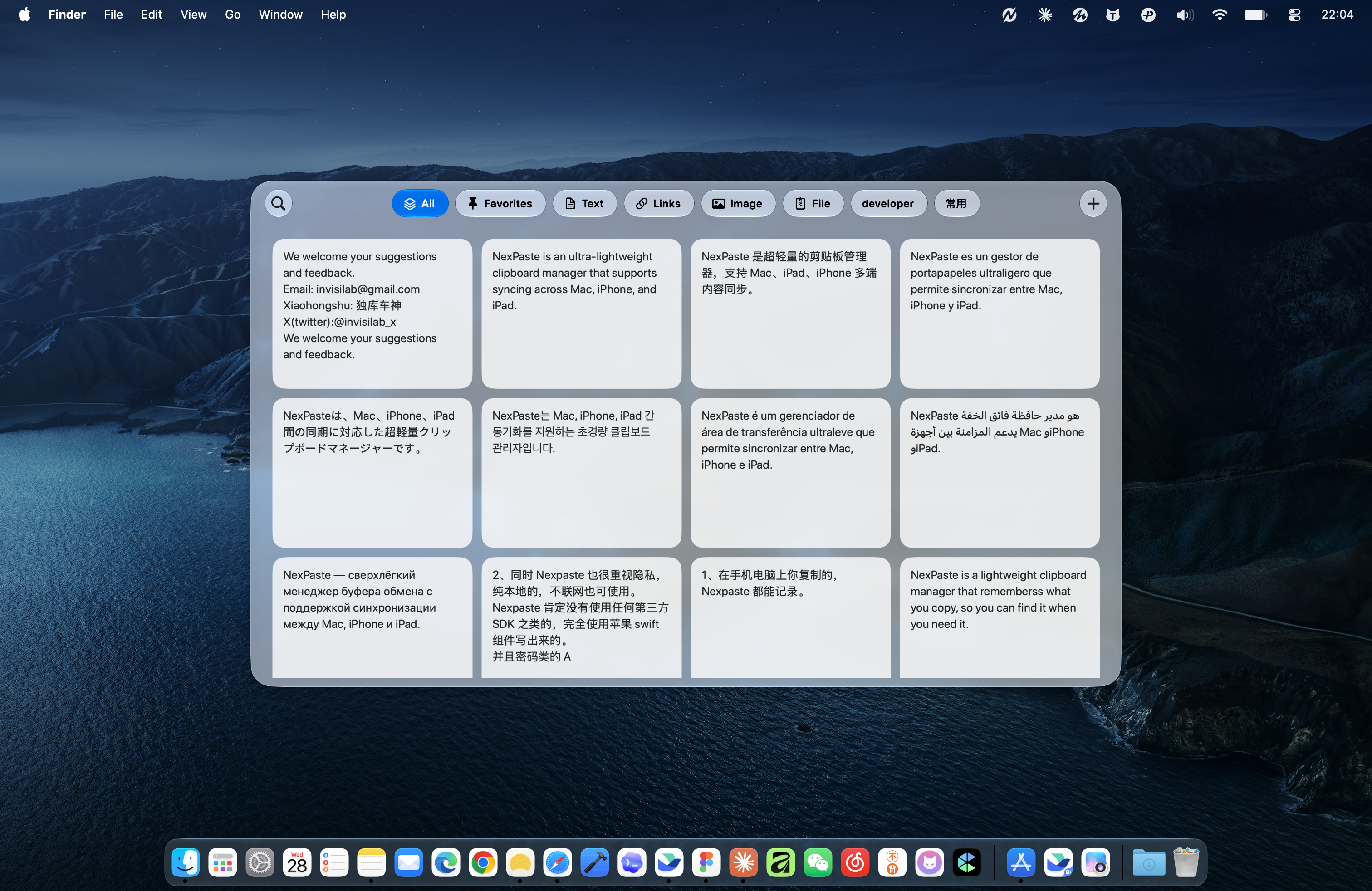
Copy a harmless test snippet
Open NexPaste, then copy a short piece of non-sensitive text from Notes or your browser. Open the history panel. If nothing appears, check whether recording is paused or the source app is excluded.
Open the panel and search
Use the shortcut configured in the app; the interface example shows Command–Shift–V. Search for a word in your test snippet, select the matching item and copy it again. Direct pasting into the previous app requires Accessibility permission; follow the app’s prompt if you want that behavior.
Favorite content you reuse
Regular history holds up to 500 items, rather than an unlimited archive. Favorite reusable addresses, replies and links, and organize them with tags. Keep separate backups of important information.
Understand file references
Mac supports text, links, images and file references. A reference points to the original file; it is not a backup copy. Moving or deleting the original may make the reference unavailable. Practice with a disposable file first.
Enable sync when you need another device
Basic features are free; iCloud sync requires Pro. Use the same Apple Account, enable sync in the app and check the content types selected on Mac. On iPhone and iPad, save through the app or widget; they do not continuously record the clipboard in the background.
Troubleshoot missing content
Confirm that recording was enabled when you copied the item. Clear search filters and check categories, recording status and excluded apps. For missing synced items, check your Apple Account, Pro access and sync settings. Do not assume items beyond the regular history limit can be recovered.
Practice with one project
When drafting an event announcement, copy its date, address and registration link, then retrieve them from history to assemble the message. Favorite reusable parts and leave temporary material in history to reduce switching between pages.
Give tags a clear purpose
Start with a few tags based on projects, clients or uses. Search for distinctive phrases or a street name rather than a very common word. Clear category filters if results seem unexpectedly narrow.